Quick post for a fix I’ve used a few times to recover from the following scenario:
You attempt to logon to an existing VM with an existing known working domain account and receive the below message:

Don’t fear! As long as you’re not working in an environment which blocks caching existing domain user credentials, you can follow the below process:
1: Record current IP / hostname for impacted VM, in case it’s lost during the next steps
2:
a) On Nutanix remove the network card from the VM
b) on vSphere, just uncheck the “connect” box on the network card as such:
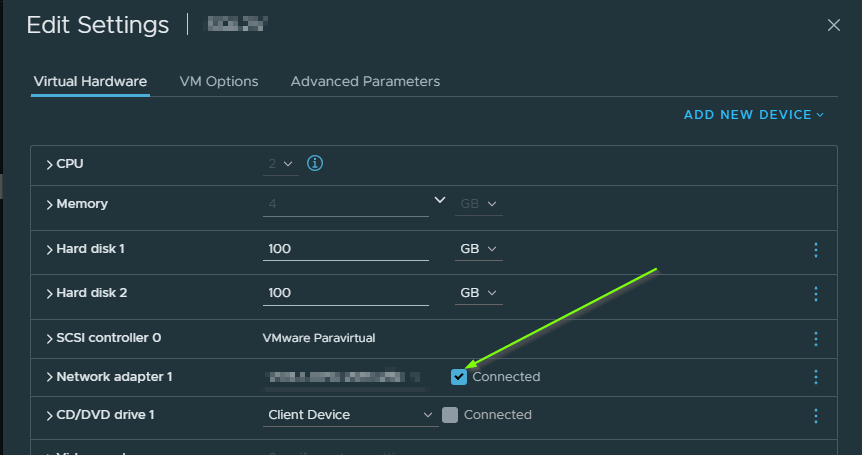
3: Logon with any previously cached profile on the VM
4: Reset the local admin password to one that you know and something simple to type into a console window (but not too simple!)
5: Reconnect previously removed network card on Nutanix / vSphere web interface
6: Open PowerShell as an admin, copy / paste in the following line:
Reset-ComputerMachinePassword -Server DomainController -Credential DomainAdmin
Replace DomainController with an AD for your environment, and enter in a valid account that has domain admin
7: If the command is successful, reboot the VM and attempt to logon again, the trust relationship error should be cleared. Proceed to do some basic testing once logged on, attempt to open remote network paths, etc, also, test the VM remotely via start > run > \\prevbrokenVMname\c$, the path should open
8: Else, if the Reset-ComputerMachinePassword cmdlet didn’t work, proceed to step 8
9: Disconnect the network card again
10: Set the VM to workgroup, reboot
11 – Logon with local admin with updated password, add VM back to domain using the same VM name, the existing one should be over-written
12 – Reboot
13 – Add back missing IP to VM if it was lost during above steps
14 – Test!
More comprehensive steps are shown in the following article on another site, but the above should do it
Have a good day , and thanks for reading!
Owen Reynolds
 Owen Reynolds Personal blog