In this post, I’ll talk about how to use a simple PowerShell script to scan for end-of-life versions of windows server within a Microsoft active directory environment. The script was written in October 2023, when a lot of IT depts are working hard to Win 2012 to meet the Oct 10, 2023 end-of-support timeline. It’s now Nov 7, 2023, so, that date has passed! The script can be used to scan for other versions of windows server as well (Server 2016 / 2019 / 2022), so, if you stumble on to the article close to the date of Oct 31, 2023 when MS tombstones support for Server 2022. You can use this PowerShell code to find any stragglers in your environment
However, you’ll have EVERYTHING MOVED TO THE PaaS / SaaS APPS RUNNING IN THE CLOUD BY THEN, RIGHT….RIIIIIIGHT?

BACKGROUND
First , bookmark this site! Microsoft Windows Server | endoflife.date
Microsoft includes their own site to track this info, but the above is easier to digest, IMO

For a good chunk of 2023, I was assisting various clients with migrating various windows 2012 instances to newer servers, friends don’t let friends do in-place upgrades, so, the Win 2019 / Win 2022 instances were all built new
As part of the work, I got used to running the following one-liner to check if the client had any other Win 2012 instances that might require migration
Get-ADComputer -Filter "operatingsystem -like '*Server 2012*' -and enabled -eq 'True'" -Properties Name,Operatingsystem,IPv4Address | Sort-Object -Property Operatingsystem | `
Select-Object -Property Name,Operatingsystem,OperatingSystemVersion,IPv4Address
My experience doing Citrix related work gave me a lot of the required skills to be able to assist with migrating over MS AD / SQL / Filer / and some application server functionality. The above code was ok, but I wanted to expand it to run online checks against the servers found, as well as put them into a table to tag for future review with the client, the final window on the code an Out-Gridview as follows
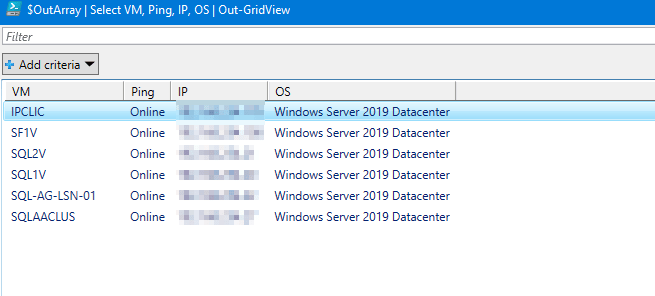
To run the below code, you’ll want to be logged into a client domain connected PC that has the Microsoft active directory PowerShell snap-ins installed, that’s about it. Pick an OS, and it will run against assets of that OS type and return the results. A future version of the script might include checks for what roles are installed on each server: AD, DHCP, DNS, filer, etc, which will help you in your planning
You can use the below code to get you started, but updated versions of the script will be on my GitHub here
Happy hunting ! 😎
Owen Reynolds
1 2 3 4 5 6 7 8 9 10 11 12 13 14 15 16 17 18 19 20 21 22 23 24 25 26 27 28 29 30 31 32 33 34 35 36 37 38 39 40 41 42 43 44 45 46 47 48 49 50 51 52 53 54 55 56 57 58 59 60 61 62 63 64 65 66 67 68 69 70 71 72 73 74 75 76 77 78 79 80 81 82 83 84 85 86 87 88 89 90 91 92 93 94 95 96 97 98 99 100 101 102 103 104 105 106 107 108 109 110 | function Select-EOLOS { param ( [string]$Title = 'Select the EOL Windows Server OS to scan for' ) Clear-Host Write-Host "================ $Title ================" Write-Host "`r" Write-Host "1: Press '1' Win 2012" Write-Host "`r" Write-Host "2: Press '2' Win 2016" Write-Host "`r" Write-Host "3: Press '3' Win 2019" Write-Host "`r" Write-Host "4: Press '4' Win 2022" Write-Host "`r" Write-Host "Q: Press 'Q' to quit" } do { Select-EOLOS Write-Host "`r" $input = Read-Host "Please make a selection" switch ($input) { '1' { Clear-Host $EOLOS = "Windows Server 2012" } '2' { Clear-Host $EOLOS = "Windows Server 2016" } '3' { Clear-Host $EOLOS = "Windows Server 2019" } '4' { Clear-Host $EOLOS = "Windows Server 2022" } 'q' { Write-Warning "Script will now exit" EXIT } } "Selected EOL Windows OS is $EOLOS" Write-Host "`r" Pause } until ($input -ne $null) Get-ADComputer -Filter "operatingsystem -like '$EOLOS*'" $Assets = Get-ADComputer -Filter "operatingsystem -like '$EOLOS*' -and enabled -eq 'True'" -Properties Name,Operatingsystem,IPv4Address | Sort-Object -Property Operatingsystem | ` Select-Object -Property Name,Operatingsystem,OperatingSystemVersion,IPv4Address $OutArray = @() $AssetsTotal = $Assets | Measure | Select-Object -ExpandProperty Count $AssetsLeft = $AssetsTotal ForEach ($i in $Assets) { $VM = $i.Name $OS = $i.Operatingsystem $IP = $i.IPv4Address write-host "Checking $VM" Write-Host "Checking $VM now" -ForegroundColor green write-host "$AssetsLeft remaining to process.." -ForegroundColor cyan if (Test-Connection -ComputerName $VM -Count 1 -ErrorAction SilentlyContinue) { $Ping = "Online" write-host "$VM is online" -ForegroundColor Green } Else { write-host "$VM is offline" -ForegroundColor yellow $Ping = "Offline" } $OutArray += New-Object PSObject -property @{ VM = $VM Ping = $Ping OS = $OS IP = $IP } $AssetsLeft -- } $OutArray | Select VM, Ping, IP, OS | Out-GridView |
 Owen Reynolds Personal blog